Part A · Create the Email Flex Query
This defines the exact data structure Helmfolio needs to parse your performance correctly.
-
1
Log in to IBKR Client Portal
Sign in at interactivebrokers.com on a desktop browser and open the Client Portal.
-
2
Open Flex Queries
Go to Performance & Reports → Flex Queries (or click the Settings gear, top-right, and look under the Reporting section).
-
3
Create a new Activity Flex Query
Next to Activity Flex Query, click the + (Create) button. Give it a distinct name like Helmfolio CSV Email.
-
4
Add the 5 required sections — click Select All in each
Open each of the five sections below and click Select All so every single field is ticked. This guarantees no critical metric field is missed:
- ✓ Trades — your executions & orders (P/L, commissions, prices)
- ✓ Open Positions — current holdings & unrealized P/L
- ✓ Cash Transactions — dividends, interest, fees, deposits/withdrawals
- ✓ Net Asset Value (NAV) — for the equity curve
- ✓ Change in NAV — isolating deposits & withdrawals
Why “Select All” matters: it ensures the
FXRateToBasefield is included in the Cash Transactions section. Helmfolio relies on this field to accurately convert non-USD dividends, interest and deposits into your base currency. -
5
Set Format, Period & General Configuration
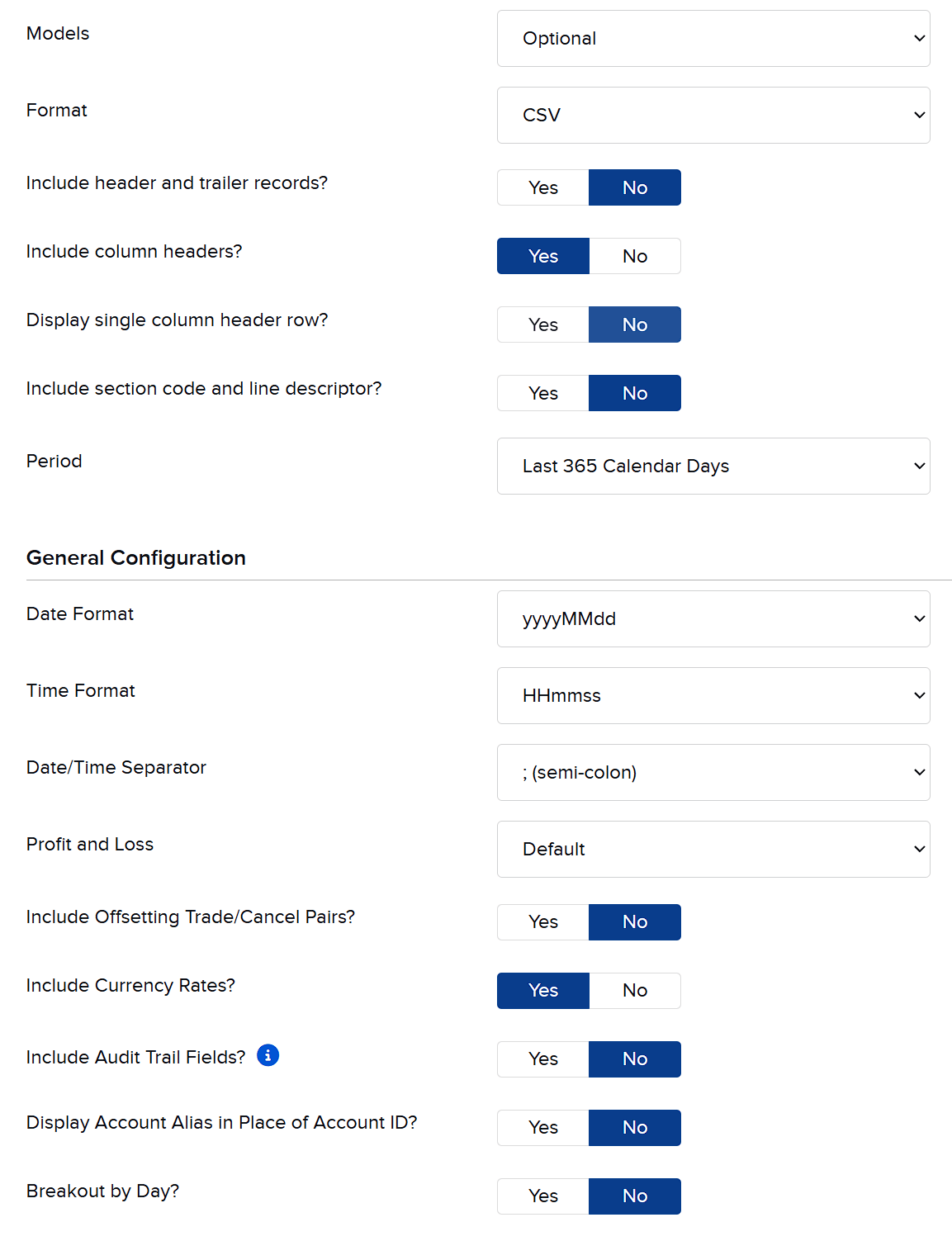
The IBKR “Delivery” & “General Configuration” panels for a CSV report — match every value to the tables below. First, set the Format to CSV. Once CSV is selected, IBKR reveals these delivery options — set them like so:
Delivery setting Choose Include header and trailer records? No Include column headers? must be Yes Yes Display single column header row? No Include section code and line descriptor? No Period Last 365 Calendar Days Then, in the General Configuration panel, match this settings table exactly:
Setting Choose Date Format must match yyyyMMdd Time Format must match HHmmss Date/Time Separator must match ; (semi-colon) Profit and Loss Default Include Offsetting Trade/Cancel Pairs? No Include Currency Rates? Yes Include Audit Trail Fields? No Display Account Alias in Place of Account ID? No Breakout by Day? No Critical setup rule. You must get the Date Format (
yyyyMMdd), Time Format (HHmmss) and separator (;) exactly right. If these differ, Helmfolio won't be able to map your trade cycles and holding periods correctly — even if the statement looks fine on IBKR's side. -
6
Save the Query
Click Continue and Save your new query.
Part B · Configure Daily Email Delivery
-
7
Navigate to Flex Queries Delivery
On the same Flex Queries page, look for the Flex Queries Delivery (or Delivery Settings) panel.
-
8
Open Configuration
Click the gear / configure icon to adjust your automated delivery preferences.
-
9
Set up email routing
Configure the delivery settings as follows:
- • Delivery Method: Email
- • Encryption: No — heads up: if Encryption is not set for Email delivery, the account details will be masked within the report.
-
10
Select report & enforce CSV format
Locate the Helmfolio CSV Email report you created in Part A. Check the box to enable it, and explicitly ensure the delivery format is set to CSV.
Important for Pro users. The XML query used for Helmfolio's Pro one-click sync must remain completely separate from this Email CSV report — even though they select the exact same sections. Don't overwrite your XML sync query.
-
11
Save and close
Click Save or Continue to finalize the schedule. IBKR will now automatically generate and email this CSV file to your inbox on a daily schedule.
Need your data right away? Skip the email wait.
If you just finished setup or want to update Helmfolio immediately without waiting for the scheduled daily email, you can manually trigger and download the CSV report straight from the portal:
- On the Flex Queries page, find the row for Helmfolio CSV Email in your Activity Flex Query list.
- Click the Run (play icon) button on that specific row.
- The report enters the generation queue in the nearby Batch Flex Queries panel.
- When processing finishes (usually under a minute), a Download link appears. Click it to save the
.csv, then jump to Part C to import it.
Part C · Import into Helmfolio
-
12
Save the attachment
When your daily IBKR email arrives, download the attached
.csvfile to your computer. -
13
Import with one click
Open Helmfolio, click Import CSV, and select the file. Helmfolio automatically parses the layout, calculates your completed trade cycles, and cleanly appends the new data to your local database while skipping any overlapping duplicates.
Important — don't leave gaps. Since IBKR only holds data for the last 365 days, import your statements regularly to build a continuous, lifelong trading history in Helmfolio. Skip more than a year and that window can't be recovered. Want to completely forget about missing data? Upgrade to Pro for automatic one-click background syncing.